Import Data into Google Sheets Using the Earth System Data Explorer
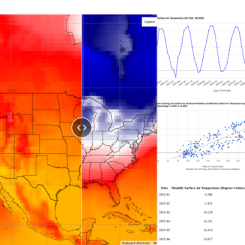
The Earth System Data Explorer allows you to download data so you can do even more with it! If you want to import this data into Google Sheets, follow the directions below.
Step 1: Open a new blank Google Sheets file.
Step 2: Generate a table from the MND Earth System Data Explorer. (There are two options to create CSV files, Create Your Own Data Table and Time Series Data Table. See the ESDE tutorials page for help on creating these files.)
Step 3: Open the table and wait until you see the Download CSV button appear at the top right. It might take a minute.
- If you save the file by using the Download CSV button, continue with Step 4.
- If you prefer to copy the data, select all rows of the table scrolling down if necessary, and continue with Step 7. (Do not use keyboard shortcuts to select all rows (such as ctrl+A) because it will copy additional header data that will cause an error. Instead, select all the rows with the mouse.)
Step 4: Navigate back to your Google Sheet. Under the "File" dropdown menu, select "Import".
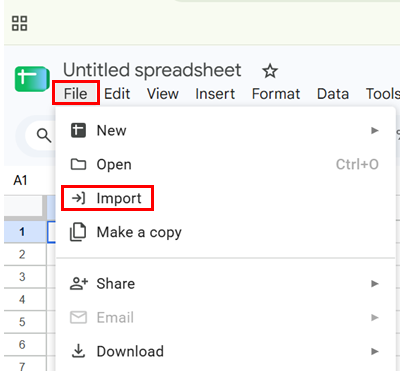
A Browse window should open.
Step 5: Select the file that you saved from the Earth System Data Explorer. You will be prompted to click "Open" if you select a file from your computer. You will be prompted to click "Insert" if you select a file from a Google Drive.
An Import File window will appear with options for the final import
Step 6: In the Import File window, select an import location of "Replace Spreadsheet" and separator type to "Detect Automatically". Check the box to "Convert text to numbers, dates, and formulas". Click Import Data.
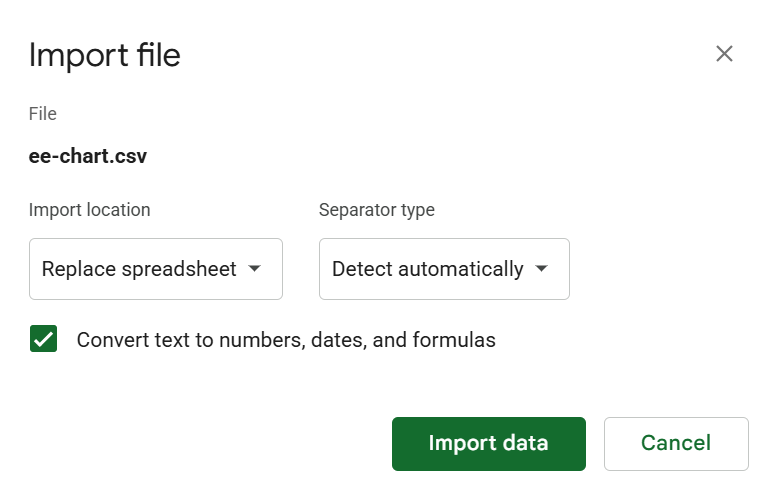
The data should be imported into your file, and you can begin working with the spreadsheet. Don't forget to name it.
Step 7: Navigate the Google Sheets file you opened. Paste the copied data from Step 1 into cell A1. Begin working with the spreadsheet. Don't forget to name it.